Ask most people what “good at keyboards” means and they’ll say a WPM number. But sit next to someone who’s genuinely fast on a keyboard — a data entry operator, a court stenographer, a programmer — and you’ll notice something else. They never look down to find the @ symbol. They Ctrl+Z instead of retyping a whole sentence. They jump to the end of a line with one keystroke instead of holding the arrow key for three seconds. That’s keyboard skill, and it’s a much bigger thing than raw typing speed on plain sentences.
This article is about what a typing website actually needs to offer if you want to build that fuller skill set — not just climb a leaderboard for letters-per-minute.
- What “keyboard skills” really covers beyond WPM
- How to build all-around keyboard fluency, step by step
- Why broader keyboard skill actually pays off
- Skill areas vs. what builds them
- A few tips that make the difference
- Mistakes people make when they only train letters
- A real scenario: two typists, one form
- Key takeaways
- Frequently asked questions
What “Keyboard Skills” Really Covers Beyond WPM
Most typing sites measure one thing: how many correct characters you produce per minute on a paragraph of plain English text. That’s a real skill, and it’s worth building — a good English typing routine will absolutely raise your WPM. But it only tests lowercase letters, spaces, and the occasional comma. It says nothing about four other things that show up constantly in real work:
Number row and symbol fluency. Passwords, email addresses, spreadsheet formulas, invoice amounts, phone numbers, hashtags, GST numbers — all of it lives on the number row and the symbol keys. If you have to glance down every time you need a 7 or an underscore, your “fast” letter typing doesn’t help you fill out a form any quicker.
Keyboard shortcuts. Ctrl+C, Ctrl+V, Ctrl+Z, Alt+Tab, Ctrl+F, Ctrl+S — these aren’t typing exercises, they’re muscle-memory habits that save you dozens of small trips to the mouse every hour. Someone who reaches for the mouse to copy-paste is losing time that has nothing to do with how fast their fingers move across letters.
Navigation keys. Home, End, Tab, Page Up/Down, the arrow keys. Ever watched someone fill out a long web form by clicking into every single field with the mouse, one at a time? Tab does that in a fraction of a second. Ever watched someone delete a whole line and retype it because they wanted to fix one word at the start? Home plus a few Delete presses does it in two seconds.
General keyboard comfort under pressure. This is the hardest one to test but the most important in practice — can you type a password correctly on the first try while someone’s waiting behind you, or fill out an online exam form without hunting for the colon key while the timer runs down?
None of this shows up in a plain 60-second English paragraph test. That’s not a knock on speed tests — they’re still the right way to measure raw typing pace — it’s just that speed on prose is one slice of keyboard skill, not the whole thing.
How to Build All-Around Keyboard Fluency, Step by Step
If you want to actually get good with a keyboard — not just fast at letters — here’s the order that works, based on how the hands and the brain actually build muscle memory.
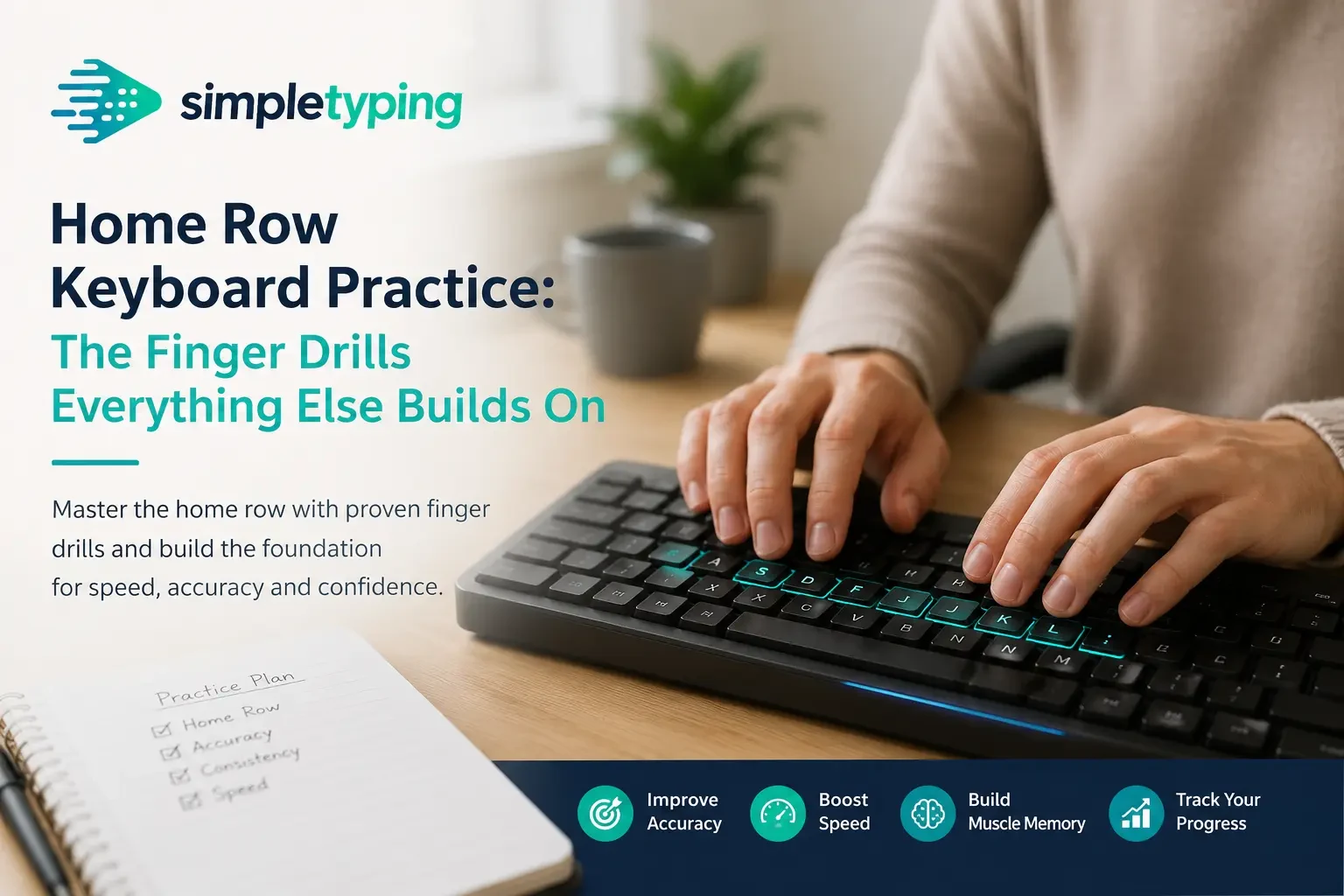
- Nail touch typing on letters first. Before anything else, get your fingers home-row-anchored so you’re not looking at the keyboard at all. This is the foundation everything else sits on. Structured English typing practice lessons that build up finger-to-key mapping row by row are the right starting point here, and if Hindi is part of your daily typing, parallel practice through Hindi typing lessons matters just as much.
- Move to the number row deliberately. Don’t wait for numbers to show up incidentally in paragraphs. Practice number-only and symbol-only drills — typing out phone numbers, prices with rupee symbols, dates in DD/MM/YYYY format — until your fingers know 1 through 0 and the shift-row symbols without a glance down.
- Layer in punctuation and special characters. Commas and periods are easy; semicolons, colons, brackets, and the @ symbol are where most people still slow down. Typing sample emails, code snippets, or even just your own email address forty times in a row builds this fast.
- Practice shortcuts in context, not as a list. Memorizing “Ctrl+C copies, Ctrl+V pastes” off a cheat sheet doesn’t stick. Using them while doing something — editing a document, correcting your own typing mistakes with Ctrl+Z instead of Backspace-mashing — is what wires it into muscle memory.
- Train navigation keys on real tasks. Fill out a long form using only Tab between fields. Edit a paragraph using only Home, End, and the arrow keys to move around, no mouse at all. It feels slow the first few times and then suddenly it’s automatic.
- Test yourself under a clock, regularly. Speed and accuracy under mild time pressure is what separates “I can technically do this” from “I do this without thinking.” A quick daily typing test session keeps the whole skill set sharp, not just letters.
Do this over three or four weeks, twenty minutes a day, and the difference is obvious — not just in WPM, but in how little you think about the keyboard while using it.
Why Broader Keyboard Skill Actually Pays Off
A student who can type 55 WPM on plain text but fumbles the number row will still burn extra minutes on an SSC or CPCT typing exam that includes account numbers, dates, and codes mixed into the passage — the kind of content covered in government exam typing practice. A working professional who never learned Ctrl+F loses minutes every day searching documents manually. A student filling out college application forms without knowing Tab will spend twice as long clicking between fields.
None of these are dramatic on their own. But they add up across a workday, an exam, or a semester of form-filling, and they’re the difference between someone who’s “fast” on a typing test and someone who’s actually efficient at a computer.
Skill Areas vs. What Builds Them
| Skill Area | What It Involves | What Builds It on a Typing Website |
|---|---|---|
| Letter & word typing | Home-row finger placement, touch typing without looking down | Structured lessons plus timed paragraph tests |
| Number row & symbols | Typing digits, currency signs, @, #, %, underscores without hunting | Number- and symbol-specific drills, mixed-content passages |
| Keyboard shortcuts | Copy, paste, undo, save, switch windows, find | Practical exercises that require using shortcuts, not just reading about them |
| Navigation keys | Tab, Home, End, arrow keys, Page Up/Down | Form-style and multi-field exercises that reward key navigation over mouse use |
| Speed under pressure | Maintaining accuracy while racing a clock | Timed tests — one minute, five minute, ten minute formats |
| Engagement & consistency | Actually practicing daily instead of quitting after a week | Games, progress tracking, certificates for milestones |
A Few Tips That Make the Difference
Practice numbers and symbols in short, dedicated bursts rather than hoping they show up naturally in paragraph typing — they rarely appear often enough in plain prose to actually train the habit. Turn off the habit of glancing at the keyboard by literally covering your hands with a cloth or a book for five minutes a day; it’s uncomfortable at first and it works faster than anything else. Use one new shortcut on purpose every day for a week until it’s automatic, instead of trying to learn ten at once. And don’t underestimate typing games for this — a lot of games force fast, reactive number and symbol use in a way that feels nothing like a chore, which matters because consistency beats intensity here.
If you’re coaching a kid through this, the same logic applies but the pacing needs to be gentler and more visual — dedicated typing lessons for kids that build letters first and add complexity slowly tend to stick far better than throwing a full keyboard at them on day one.
Mistakes People Make When They Only Train Letters
The most common one is treating a high WPM score as proof of overall keyboard skill, then getting stuck on a form that asks for a PAN number or an email ID and typing it slower than plain sentences. Another is avoiding shortcuts because the mouse feels “faster in the moment” — it is, for one action, but it adds up to minutes lost per hour across a full workday. A third is skipping symbol practice entirely because paragraphs rarely test it, so semicolons and brackets never get wired into muscle memory even after months of daily typing practice. And a fourth, especially common among exam aspirants, is drilling only clean English paragraphs when the actual government typing exam passages are full of numbers, dates, and mixed punctuation — a mismatch that shows up as lost time on exam day.
A Real Scenario: Two Typists, One Form
Picture two candidates filling out the same 20-field online exam registration form. Both type English prose at roughly 45 WPM. Candidate A clicks into each field with the mouse, glances down to find the @ symbol for their email, hunts for the hyphen in their PAN number, and retypes a mistyped date by selecting it with the mouse and deleting it manually. That form takes them close to six minutes.
Candidate B tabs between fields, types their email and PAN without looking down because they’ve drilled the number row and symbols separately, and fixes a typo with Home plus two Delete presses instead of a mouse-drag selection. Same form, same typing speed on plain text — but it takes them under two and a half minutes. That gap has nothing to do with WPM. It’s pure keyboard fluency, and it’s exactly what plain paragraph-speed tests never measure.
Key Takeaways
- WPM on plain paragraphs measures one slice of keyboard skill — letters only.
- Real fluency includes numbers, symbols, shortcuts, and navigation keys, all of which show up constantly in everyday computer use.
- Build skills in order: letters first, then numbers and symbols, then shortcuts and navigation, layered in over three to four weeks.
- Practical drills beat memorized lists — use shortcuts and navigation keys on real tasks, not flashcards.
- A typing website worth using should offer more than paragraph tests: symbol drills, games, exam-style mixed content, and a way to track progress over time.
- Government exam typing and everyday form-filling both reward keyboard fluency far more than raw prose speed alone.
Frequently Asked Questions
Is a high WPM score enough to prove good keyboard skills?
Not on its own. A high WPM on plain English paragraphs shows you’re fast and accurate with letters, but it says nothing about how comfortable you are with numbers, symbols, shortcuts, or navigation keys — all of which come up constantly outside of paragraph typing.
What’s the fastest way to get comfortable with the number row?
Practice numbers and symbols separately from paragraph typing, in short daily bursts — type out phone numbers, prices, and dates repeatedly until your fingers find the keys without your eyes checking first.
Do keyboard shortcuts actually save meaningful time?
Yes. A single shortcut like Ctrl+C saves maybe a second over reaching for the mouse, but multiply that across dozens of copy-paste, undo, and window-switch actions in a workday and it adds up to real minutes, every single day.
Should I learn touch typing before working on shortcuts and navigation?
Generally yes. Get comfortable finding letter keys without looking first, since that habit of not looking down is exactly what shortcut and navigation-key fluency also depends on.
Can typing games actually help with keyboard skills beyond speed?
They can, especially games that mix in numbers or fast reactive key presses rather than just plain words — the variety trains reflexes a straight paragraph test doesn’t touch, and it keeps practice from feeling repetitive.
How is keyboard skill different for government exam typing tests?
Exam passages usually mix in numbers, dates, and punctuation rather than staying pure prose, so candidates who only practiced clean paragraphs often lose time hunting for symbols they never drilled separately.
Is it worth practicing Hindi typing alongside English for keyboard fluency?
If you use both in daily work or exams, yes — the finger discipline transfers, but the key layout and muscle memory for Hindi typing are distinct enough that they need their own practice time rather than assuming English fluency covers it.
What age should kids start learning broader keyboard skills, not just letters?
Letters and basic touch typing should come first, usually once a child is comfortable reading independently; numbers, symbols, and shortcuts are best introduced gradually afterward rather than all at once.
How long does it take to build real all-around keyboard fluency?
With focused daily practice covering letters, numbers, symbols, shortcuts, and navigation in that order, most people notice a real shift in comfort within three to four weeks.
Does accuracy matter more than speed when learning symbols and numbers?
Early on, yes. Typing a phone number or password correctly the first time matters more than doing it fast — speed on numbers and symbols comes naturally once the finger placement is accurate and automatic.
Can I track progress on keyboard skills the way I track WPM?
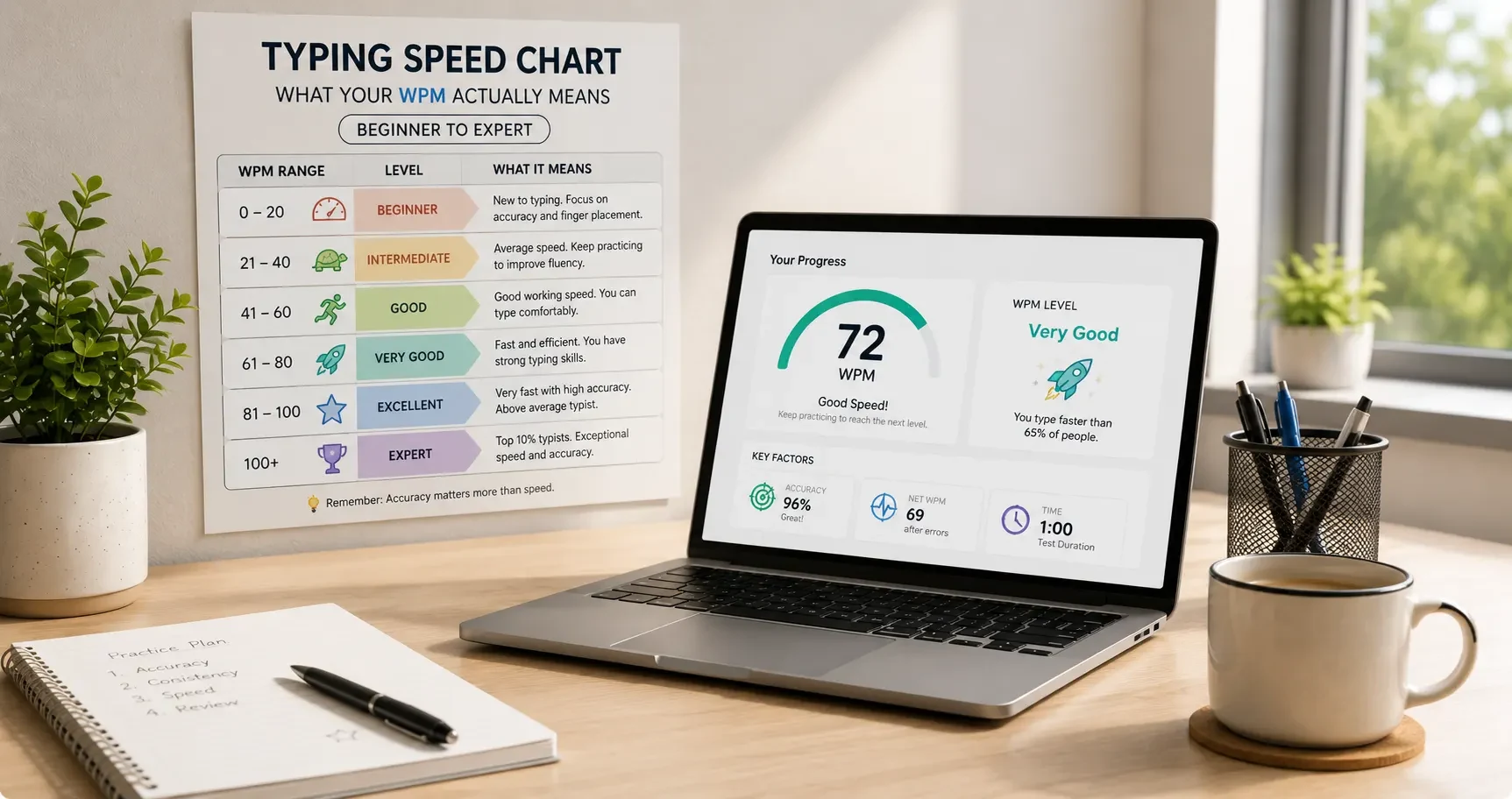
Yes, though it takes more than one number — tracking accuracy on mixed-content passages, time taken on form-style exercises, and consistency of daily practice all matter alongside a plain WPM score.
Is one typing website enough to cover all of this, or do I need multiple tools?
One site can cover it if it offers more than plain paragraph tests — look for number and symbol drills, games, exam-style mixed content, and lessons for both English and Hindi if you need both, rather than switching between several disconnected tools.
Keyboard skill isn’t a single number — it’s the whole quiet toolkit of not looking down, not reaching for the mouse, and not losing time on the fields a plain paragraph test never checks. Building it takes the same thing building any skill takes: regular, deliberate practice with the right mix of material. Start with a quick free typing test to see where your letters, numbers, and symbols actually stand today, work through structured lessons to close the gaps, and create a free account to track your progress and earn a typing certificate once it all comes together.