{ "@context": "https://schema.org", "@type": "BreadcrumbList", "itemListElement": [ {"@type": "ListItem", "position": 1, "name": "Home", "item": "https://simpletyping.in/"}, {"@type": "ListItem", "position": 2, "name": "Blog", "item": "https://simpletyping.in/blog/"}, {"@type": "ListItem", "position": 3, "name": "Typing Master Software vs Modern Typing Websites: A Feature-by-Feature Comparison", "item": "https://simpletyping.in/blog/typing-master-software-vs-online-typing-websites/"} ] }
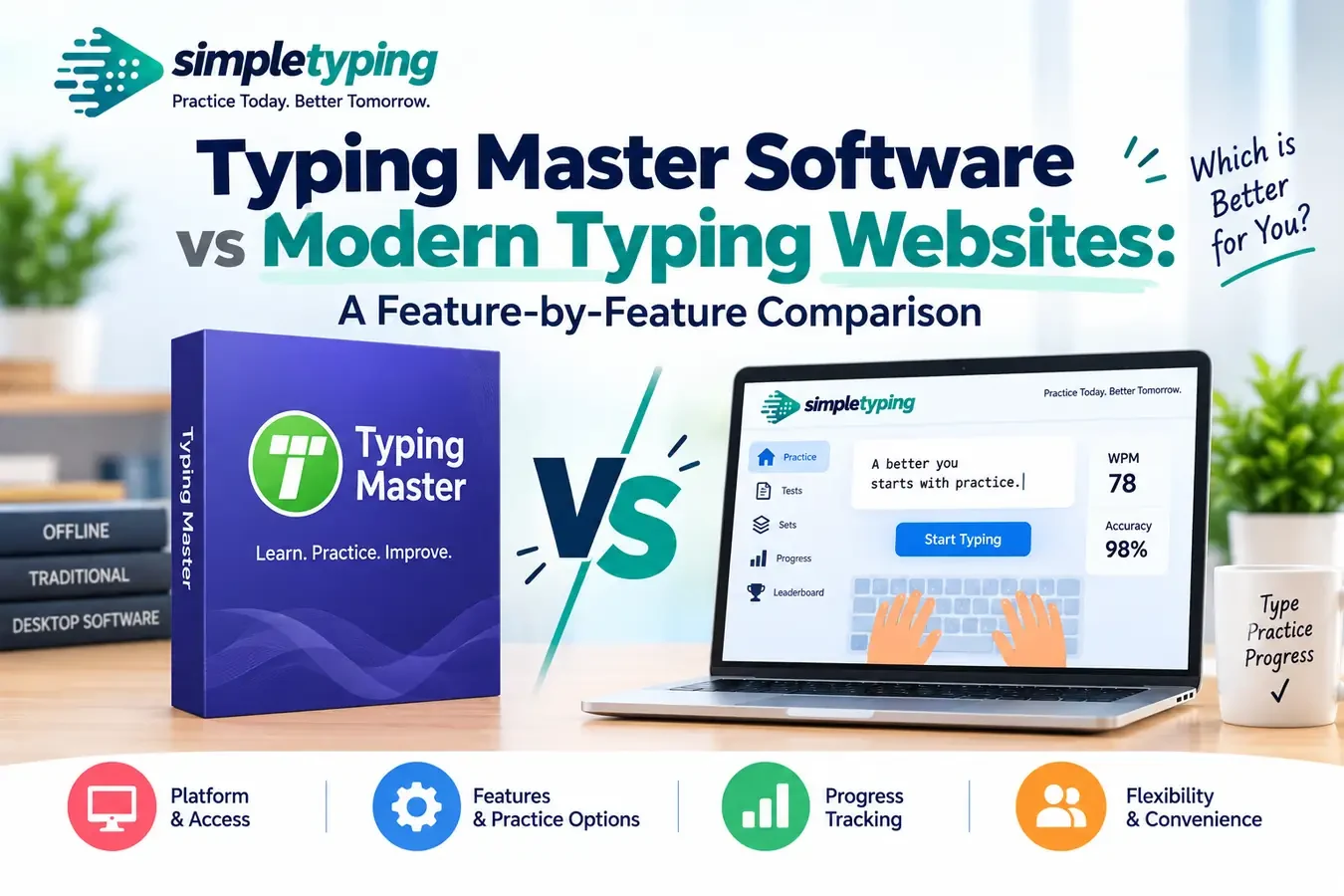
Ask anyone over thirty about learning to type and there is a decent chance they will say “Typing Master” the way people say “Xerox” for photocopying. It was the CD-ROM (later the .exe download) sitting on half the computer lab machines in the 2000s and 2010s, and for a lot of people it is still the mental default when someone says “typing software.” The question worth answering honestly, in 2026, is not whether Typing Master was good — it was, and in some ways still is — but whether that installed-program model still makes sense next to a browser tab that opens in two seconds and updates itself overnight. This is not a takedown. It is a straight, section-by-section comparison so you can pick based on what you actually need, not nostalgia.
- What "Typing Master" actually refers to now
- Lesson structure: fixed curriculum vs adaptive drills
- Test accuracy and reporting
- Feature-by-feature comparison table
- Multi-device support
- Cost and update frequency
- A real-world scenario
- When desktop software still makes sense
- Key takeaways
- Frequently asked questions
What "Typing Master" actually refers to now
Typing Master started life as a boxed Windows application, and later versions added online components, but the core product has always been an installed program you run locally. Because it was one of the first widely distributed typing tutors in many countries, the name became shorthand for the whole category — the same way people say “Google it” regardless of which search engine they use. When someone searches “typing master” today, they are often not looking for that specific brand at all; they are looking for a way to practice typing, get a WPM score, and maybe a certificate. That is the comparison this article actually makes: installed desktop typing software (Typing Master and its cousins like Rapid Typing Tutor or KP Typing Tutor) against browser-based typing websites that run entirely online.
The distinction matters because the two approaches were built for different eras of computing. Desktop software assumes one user, one machine, occasional updates via reinstall. Web tools assume you might practice on a school computer today, your phone tomorrow, and a library PC next week, and that your progress should follow you regardless.
Lesson structure: fixed curriculum vs adaptive drills
Typing Master-style software typically ships with a fixed, linear course — home row, then top row, then bottom row, then numbers, then timed tests, in a set order across dozens of lessons. That structure is genuinely good for absolute beginners because it removes decision fatigue; you just click “next lesson.” The downside is rigidity. If you already know the home row but struggle specifically with number rows or punctuation, you still have to sit through everything in sequence, or dig through a menu to skip ahead.
Web-based typing sites lean toward modular, on-demand practice: you pick a mode — a one-minute test, a five-minute paragraph, a words-only drill, an exam-format passage — without being locked into a course order. Some sites still offer structured lesson-by-lesson tracks for beginners (worth using if you are starting from zero), but the day-to-day usage pattern is closer to “open the type of practice I need right now.” If you want the guided path, our English typing practice section covers both structured drills and open paragraph tests, so you are not forced to choose one mode forever.
- Fixed curriculum: better for total beginners who want no decisions to make
- Modular practice: better once you know your weak spots and want to target them
- Desktop software rarely lets you jump straight to exam-format passages without finishing earlier lessons
- Web tools usually let any registered or guest user start at any test length immediately
Test accuracy and reporting
This is where the comparison gets genuinely interesting instead of one-sided. Desktop Typing Master builds have a long track record of detailed per-key error tracking — heatmaps showing exactly which keys you fumble, finger-by-finger breakdowns, and progress graphs stored locally across months of use. That level of granular, offline-stored history is still a real strength of the desktop model, and some long-time users prefer it precisely because the data never leaves their machine.
Modern typing websites report WPM, accuracy percentage, error count, and often a corrected-vs-raw speed split immediately after each test, with results tied to your account so they persist across devices. What web tools add that desktop software generally cannot is comparison context — how your score stacks up against other users, or against a specific exam's cutoff, which matters if you are prepping for something like SSC or a state-level typing requirement. The tradeoff is that browser-based reporting depends on you being logged in or on cookies not being cleared; guest-mode results usually do not persist the way a locally installed program's history file does.
Feature-by-feature comparison table
Here is the comparison stripped down to specifics, not marketing language from either side.
| Feature | Desktop software (Typing Master style) | Web-based typing sites |
|---|---|---|
| Installation | Requires download and install; admin rights sometimes needed | None; opens in any browser |
| Lesson structure | Fixed, linear course order | Modular; jump to any test length or mode |
| Offline use | Works fully without internet | Needs a connection (mostly) |
| Multi-device sync | Rare; data usually tied to one PC | Account-based sync across devices |
| Reporting detail | Deep per-key heatmaps, stored locally | WPM, accuracy, error breakdown, often with peer comparison |
| Certificates | Locally generated, not third-party verifiable | Often shareable/verifiable via a registered account |
| Cost | One-time purchase (or aging free version) | Usually free, ad-supported or freemium |
| Update frequency | Occasional major-version releases | Continuous, silent updates |
| Hindi/regional layouts | Limited, version-dependent | Commonly built in (e.g. Kruti Dev, Mangal, Remington) |
| Mobile access | None or a separate app | Same site, responsive on phone/tablet |
None of this means desktop software is obsolete — the offline row and the locally-stored-data row are real, durable advantages for specific situations, which we get to below.
Multi-device support
Desktop Typing Master is, by design, tied to the machine it is installed on. If you practice on a home PC and then need to continue on a laptop at college or a phone during a commute, you either reinstall and lose history, or you simply do not practice on the other device. That single-machine model made complete sense in 2008. It makes less sense now that most people move between at least two or three devices in a normal week.
Browser-based typing sites solve this by tying progress to an account rather than a machine. Log in on a phone, a shared family computer, or a school lab PC, and your history, saved stats, and certificates travel with you. This matters most for two groups: students who use different computers at home and school, and government exam aspirants using our exam-focused typing practice who often train on whatever computer is available — library, cyber cafe, coaching center — rather than one dedicated machine. Kids practicing on a shared family tablet benefit from the same portability, which is part of why browser tools have become the default for younger learners on pages like typing practice for kids.
Cost and update frequency
Desktop typing software has historically used a one-time purchase or a limited free tier that nags you to upgrade. That is not a bad model — you pay once and, in theory, own it forever — but it comes with a real cost most people underweight: software rot. A program built for Windows 7 does not always run cleanly on a current OS, fonts and rendering can look dated, and the company behind it may or may not still be actively patching it years later.
Web-based typing sites are almost universally free to use for core practice, funded by ads or optional premium features, and because they are server-hosted, updates happen invisibly — new test formats, layout fixes, and new content roll out without you doing anything. The practical effect is that a typing website you used two years ago probably looks and works differently today, usually better, while an installed program from two years ago looks exactly the same unless you manually update it. If budget is the deciding factor, free web practice removes it from the equation entirely, and a quick free account gets you saved history and certificates without paying for anything.
A real-world scenario
Rohit, a 24-year-old preparing for a state-level clerical exam, had used Typing Master on his family desktop back in school and assumed it was still his best option. Two issues showed up fast. First, the exam's typing round is conducted in a specific software environment with a required WPM and accuracy threshold, and Rohit had no way to simulate that exact format on his old installed copy, which only offered its own generic lesson set. Second, his exam prep happened partly at home and partly at a coaching center with shared computers — his local Typing Master history and progress simply did not exist on those machines.
He switched his day-to-day drilling to browser-based practice with exam-format passages and a saved account, keeping his old desktop software only for offline practice during a week his coaching center had no internet. That combination — web tool as the default, desktop software as an offline backup — is a genuinely reasonable setup, not a compromise.
When desktop software still makes sense
It would be dishonest to say the browser wins every scenario. There are real situations where installed software is the better call:
- Fully offline environments — rural areas with unreliable internet, or workplaces that block browser access for security reasons
- Government or institutional computers where installing licensed software is standard but browsing is restricted or monitored
- Users who specifically want their typing data to never touch a server, for privacy reasons
- People who already own a paid license and see no reason to abandon a tool that works fine for their needs
- Environments with very old hardware where a lightweight installed app runs more smoothly than a modern browser with multiple tabs open
If none of those apply to you, a web-based tool will almost always be less hassle for the same practice quality.
Key takeaways
- Typing Master built the desktop typing tutor category, but the name now often stands in for the whole idea of typing practice software
- Desktop software offers a fixed, beginner-friendly curriculum and works fully offline; web tools offer modular, on-demand practice from any device
- Web-based reporting adds comparison context and account-based history; desktop software still leads in locally stored, granular per-key data
- Cost and update frequency favor the web model — free, continuously updated, no reinstalls
- Multi-device users, students, and exam aspirants generally benefit more from browser-based tools than from a single-machine installation
- Offline-only environments, privacy-sensitive users, and people happy with an existing paid license have legitimate reasons to stick with desktop software
Frequently asked questions
Is Typing Master still worth buying in 2026?
If you specifically need offline practice or already prefer its interface, it still works. For most people, a free browser-based tool offers comparable or better practice without the upfront cost or install step.
Do web-based typing sites track progress as well as Typing Master does?
Yes, in a different way. Web tools track WPM, accuracy, and error history tied to your account across devices, though the per-key heatmap depth of some desktop software is harder to replicate in a browser.
Can I use a typing website without installing anything?
Yes, that is the core advantage. Any typing website works directly in your browser on desktop, laptop, tablet, or phone with no download required.
Which is better for complete beginners, desktop software or a website?
Desktop software's fixed lesson order can feel simpler for absolute beginners, but most modern typing websites now offer structured beginner tracks too, with the added benefit of working on any device you use.
Does desktop typing software work without internet?
Yes, that is one of its genuine advantages. Once installed, it runs fully offline, which matters in areas with unreliable connectivity.
Are typing certificates from websites accepted the same way as desktop software reports?
It depends entirely on the requesting institution. Web-based certificates tied to a verified account are often easier to share and confirm online; check the specific exam or employer's accepted format before relying on either.
Can I practice Hindi typing on both desktop software and web tools?
Some desktop versions support Hindi layouts, but coverage varies by version and can be limited. Most modern typing websites, including options for Hindi typing practice, support Kruti Dev, Mangal, and Remington layouts by default.
Why does my WPM score differ between Typing Master and a web-based test?
Different tools calculate corrected vs raw WPM differently, and use different error-penalty rules. A gap of a few WPM between two tools is normal and does not mean either score is wrong.
Is browser-based typing practice safe for kids?
Reputable typing sites designed for younger learners use simple, ad-light interfaces and do not require sensitive personal information to practice. Choose a site built for the age group rather than a generic adult-focused tool.
Do I need to pay for a typing website to get useful features?
Most core features — timed tests, accuracy reports, and basic certificates — are free on typing websites. Paid tiers, where they exist, usually add extras rather than gate essential practice.
Can I switch from desktop software to a web tool without losing my typing skill level?
Yes. Typing skill lives in muscle memory, not in the software's saved file, so your speed and accuracy carry over immediately when you switch tools.
What is the single biggest practical difference between the two?
Portability. Desktop software ties your practice and history to one machine; web-based tools follow you across any device you log in from.
{ "@context": "https://schema.org", "@type": "FAQPage", "mainEntity": [ {"@type": "Question", "name": "Is Typing Master still worth buying in 2026?", "acceptedAnswer": {"@type": "Answer", "text": "If you specifically need offline practice or already prefer its interface, it still works. For most people, a free browser-based tool offers comparable or better practice without the upfront cost or install step."}}, {"@type": "Question", "name": "Do web-based typing sites track progress as well as Typing Master does?", "acceptedAnswer": {"@type": "Answer", "text": "Yes, in a different way. Web tools track WPM, accuracy, and error history tied to your account across devices, though the per-key heatmap depth of some desktop software is harder to replicate in a browser."}}, {"@type": "Question", "name": "Can I use a typing website without installing anything?", "acceptedAnswer": {"@type": "Answer", "text": "Yes, that is the core advantage. Any typing website works directly in your browser on desktop, laptop, tablet, or phone with no download required."}}, {"@type": "Question", "name": "Which is better for complete beginners, desktop software or a website?", "acceptedAnswer": {"@type": "Answer", "text": "Desktop software's fixed lesson order can feel simpler for absolute beginners, but most modern typing websites now offer structured beginner tracks too, with the added benefit of working on any device you use."}}, {"@type": "Question", "name": "Does desktop typing software work without internet?", "acceptedAnswer": {"@type": "Answer", "text": "Yes, that is one of its genuine advantages. Once installed, it runs fully offline, which matters in areas with unreliable connectivity."}}, {"@type": "Question", "name": "Are typing certificates from websites accepted the same way as desktop software reports?", "acceptedAnswer": {"@type": "Answer", "text": "It depends entirely on the requesting institution. Web-based certificates tied to a verified account are often easier to share and confirm online; check the specific exam or employer's accepted format before relying on either."}}, {"@type": "Question", "name": "Can I practice Hindi typing on both desktop software and web tools?", "acceptedAnswer": {"@type": "Answer", "text": "Some desktop versions support Hindi layouts, but coverage varies by version and can be limited. Most modern typing websites support Kruti Dev, Mangal, and Remington layouts by default."}}, {"@type": "Question", "name": "Why does my WPM score differ between Typing Master and a web-based test?", "acceptedAnswer": {"@type": "Answer", "text": "Different tools calculate corrected vs raw WPM differently, and use different error-penalty rules. A gap of a few WPM between two tools is normal and does not mean either score is wrong."}}, {"@type": "Question", "name": "Is browser-based typing practice safe for kids?", "acceptedAnswer": {"@type": "Answer", "text": "Reputable typing sites designed for younger learners use simple, ad-light interfaces and do not require sensitive personal information to practice. Choose a site built for the age group rather than a generic adult-focused tool."}}, {"@type": "Question", "name": "Do I need to pay for a typing website to get useful features?", "acceptedAnswer": {"@type": "Answer", "text": "Most core features, including timed tests, accuracy reports, and basic certificates, are free on typing websites. Paid tiers, where they exist, usually add extras rather than gate essential practice."}}, {"@type": "Question", "name": "Can I switch from desktop software to a web tool without losing my typing skill level?", "acceptedAnswer": {"@type": "Answer", "text": "Yes. Typing skill lives in muscle memory, not in the software's saved file, so your speed and accuracy carry over immediately when you switch tools."}}, {"@type": "Question", "name": "What is the single biggest practical difference between the two?", "acceptedAnswer": {"@type": "Answer", "text": "Portability. Desktop software ties your practice and history to one machine, while web-based tools follow you across any device you log in from."}} ] }
If you have been putting off a decision between installing something like Typing Master and just practicing in the browser, the honest answer for most people is to start with the web tool — it costs nothing to try. Head over to English typing practice to run a real test right now, or create a free account to save your progress and pull a certificate once your speed and accuracy are where you want them.