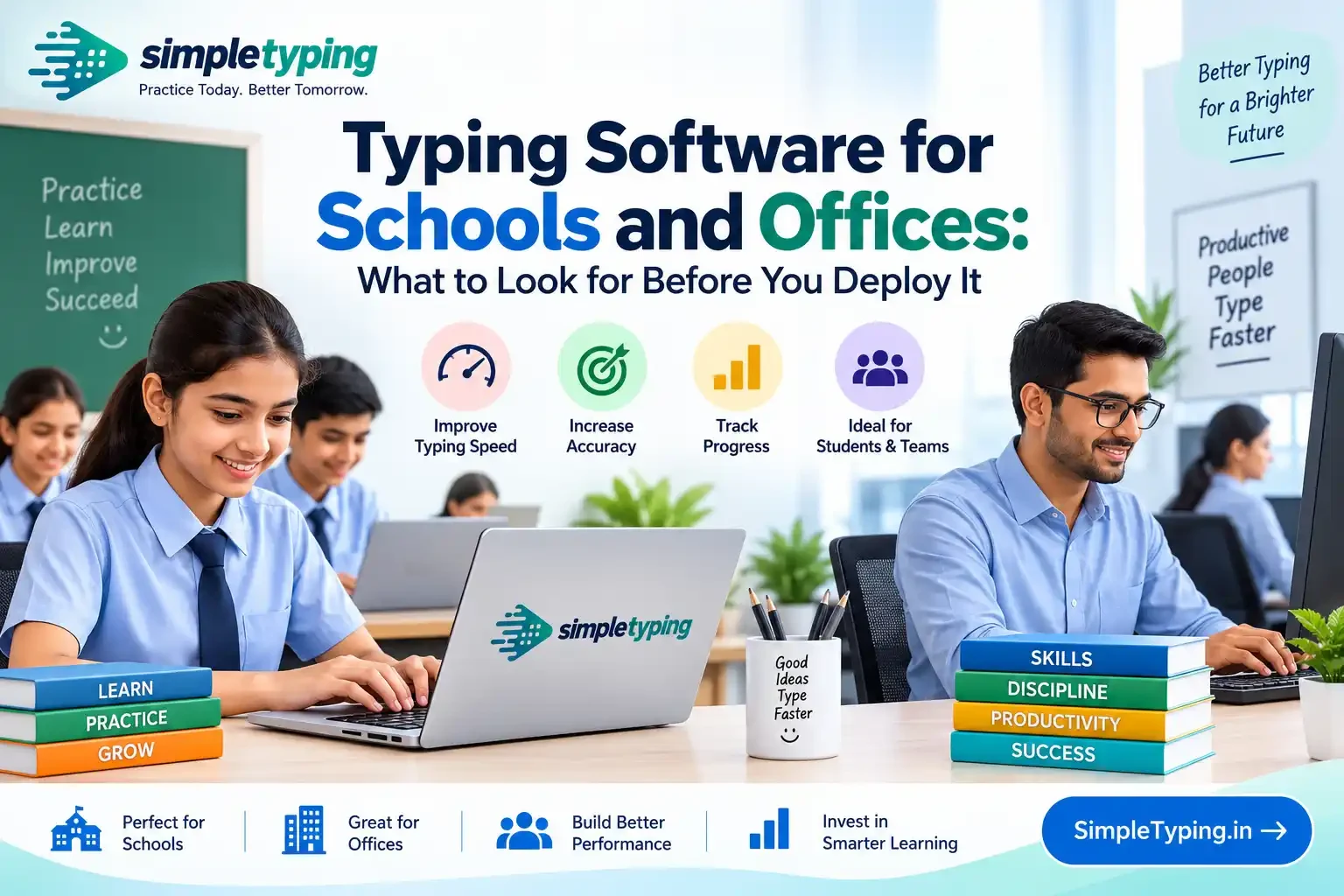
If you have ever been handed the task of “just find us some typing software” for a computer lab of 30 students or a training batch of 40 new hires, you already know the search results are not built for you. Every review out there compares typing software the way a home user would — which one has the nicer lessons, which one feels faster, which one is cheaper for a single seat. None of that tells you whether you can create 30 accounts in under ten minutes, whether a teacher can see who has not practiced in two weeks, or whether the vendor's data policy will survive a conversation with your school's privacy committee. Buying typing software for an institution is a procurement decision, not a personal preference, and it deserves its own checklist.
- Why institutional buying is a different problem
- Multi-user account management and bulk enrollment
- Progress reporting: what a dashboard actually needs to show
- Curriculum alignment for schools
- Deployment friction: installed software vs browser-based labs
- Cost at scale and data privacy
- A real rollout: how one IT coordinator did it
- Key takeaways
- Frequently asked questions
Why institutional buying is a different problem
A single learner cares about one thing: does this help me type faster. An institution cares about that too, but it is fourth or fifth on the list. Ahead of it sits a pile of operational questions — who manages the accounts when a student transfers sections mid-year, who resets a forgotten password for 30 people without emailing each one individually, who proves to the principal that the software is actually being used, and who signs off that the tool is safe for a 10-year-old to log into. A typing tool that is excellent for one person can be a genuine liability for an institution if it has no admin layer at all. The evaluation has to start from the management side, not the lesson content side.
This also changes who the “user” even is. In a consumer purchase, the buyer and the user are the same person. In an institutional purchase, the buyer is a school IT coordinator or an office training manager, and the users are students or employees who never see a price tag. That gap is exactly where most bad purchases happen — software gets picked because a demo looked polished, then the coordinator discovers three months in that there is no way to pull a class-wide report before a parent-teacher meeting.
Multi-user account management and bulk enrollment
The first real test of any institutional typing tool is how painful it is to get 30, 100, or 500 people into it. Creating accounts one at a time through a signup form does not scale past a handful of users, and yet that is exactly how a surprising number of “typing software for schools” products still work once you look past the marketing page.
Ask these questions before you commit to anything:
- Can accounts be created in bulk from a spreadsheet or roster upload, rather than one signup form at a time?
- Can users be grouped by class, section, or department, so a teacher only sees their own students and not the whole school?
- Is there a simple way to deactivate or reassign an account when a student leaves or an employee changes teams?
- Does a forgotten password require an admin reset, or does it lock a student out for a whole class period waiting on IT?
If the answer to the first question is no, walk away regardless of how good the typing lessons look. A lab session where half the students are stuck at a signup screen is not a typing lesson anymore, it is a tech support session.
Progress reporting: what a dashboard actually needs to show
This is the feature that separates genuinely institutional software from consumer software with a login screen bolted on. A teacher or training manager does not need to see every keystroke — they need to answer three questions quickly, ideally without opening 30 individual profiles: who is falling behind, who is ready to move ahead, and is the group as a whole improving week over week.
A dashboard worth paying for should let a manager sort a class or team by average words per minute, accuracy trend, and time actually spent practicing — not just logged in. Time-on-task and actual keystrokes typed are different numbers, and software that only reports the former is easy to game by a student who leaves a tab open. Exportable reports matter more than they sound like they should; a coordinator preparing for a review meeting needs a CSV or PDF they can hand upward, not a screenshot of a live chart that changes the moment someone else logs in.
Curriculum alignment for schools
Typing software bought for a school needs to sit inside an existing curriculum, not replace the school's own sequencing decisions. That means lesson progression should be adjustable — a school running a formal keyboarding class for grade 6 wants a structured, week-by-week path, while a school just offering typing as an elective club wants something more open-ended.
Language coverage matters more here than in most consumer reviews, particularly in Indian schools where a typing curriculum may need to run in both English and Hindi. If your school teaches Hindi typing alongside English, check whether the software actually supports the layout your school uses — Kruti Dev, Mangal, or Remington are not interchangeable, and a tool that only advertises “Hindi support” without naming the layout is worth a direct question to the vendor before you sign anything. For English-medium schools, confirm the practice content itself is graded by difficulty rather than being one flat pool of random paragraphs, since a class of 10-year-olds and a batch of 12th graders should not be typing the same passages.
Deployment friction: installed software vs browser-based labs
This is the criterion that quietly derails more school and office rollouts than any lesson-content decision. Installed typing software means every machine in the lab needs the software pushed to it, licensed to it, and kept updated on it — workable if your IT department already manages a software image across the lab, painful if it does not. Browser-based typing software sidesteps all of that: a student opens a browser, logs in, and practices, with nothing to install and nothing to update machine by machine.
The trade-off is not purely one-sided. Installed software can sometimes work offline, which matters in a lab with unreliable internet, while browser-based tools depend on a live connection. But for most schools and offices in 2026, the deployment math favors browser-based software heavily — a single broken installer on a 40-machine lab image is a multi-day fix, while a browser-based tool that breaks is usually a five-minute cache clear. If your lab machines are locked down, shared across multiple classes, or replaced every few years, browser-based access is close to a non-negotiable requirement rather than a nice-to-have.
Cost at scale and data privacy
Per-seat pricing that looks reasonable for one user can turn into a five- or six-figure line item once you multiply it by an entire school or office roster, and vendors are not always upfront about how licensing tiers work once you cross a certain headcount. Ask specifically what happens when a student count changes mid-year, whether unused seats roll over, and whether there is a genuine free tier for piloting before a purchase order is signed. A free account is a reasonable way to test the actual lesson quality and dashboard before committing budget to a paid institutional tier.
Data privacy deserves equal weight, especially when the users are minors. An institution should be able to answer, in writing, what personal data the software collects on each student, whether that data is shared with or sold to third parties, and how long it is retained after a student leaves the school. This is not a box-ticking formality — it is the difference between a tool your school can defend to parents and one that creates a liability nobody noticed until it was too late.
| Buying criterion | Why it matters for institutions | Red flag to watch for |
|---|---|---|
| Bulk account creation | Onboarding 30+ users manually wastes class or training time | No roster/CSV upload option |
| Admin/teacher dashboard | Managers need group-level reporting, not per-user digging | Reports only visible one profile at a time |
| Curriculum flexibility | Schools need to fit the tool into an existing syllabus | Fixed lesson order that cannot be reordered or paced |
| Deployment model | Lab machines are shared, locked down, and IT-managed | Requires per-machine installation and manual updates |
| Scaled pricing | Per-seat cost multiplies fast across a whole institution | No published tier for 50+ or 200+ users |
| Data privacy policy | Many users are minors; schools are accountable for their data | Vague or absent policy on data retention and sharing |
A real rollout: how one IT coordinator did it
Sunita Rao coordinates IT for a mid-sized private school with roughly 220 students across grades 6 to 10. Her school had been running typing classes off a single installed program licensed years earlier, and every new lab machine meant reinstalling and re-licensing by hand. Before recommending a replacement, she piloted a browser-based option with one section of grade 7 for three weeks, specifically checking three things: how long bulk account setup actually took against the vendor's claim, whether her homeroom teacher could pull a weekly progress report without calling her for help, and whether the tool worked cleanly through the school's content filter and shared logins.
The pilot surfaced a real problem early — the first vendor she tried had no way to bulk-deactivate accounts for the trial group afterward, which would have been unmanageable at full scale. She switched to a second option that supported roster upload and section-level dashboards, ran a second three-week pilot, and only then took a proposal to the principal with actual numbers: setup time per class, average practice minutes per week, and a sample teacher report. That two-pilot process took about seven weeks total, but it meant the full-school rollout the following term had almost no surprises.
Key takeaways
- Evaluate institutional typing software on management features first — bulk accounts, dashboards, deactivation — before judging lesson content.
- A teacher or manager dashboard should answer “who needs help” at a glance, with exportable reports for meetings and reviews.
- Curriculum flexibility and correct-layout language support matter more in a school setting than in an individual purchase.
- Browser-based deployment removes most of the per-machine installation headache that sinks lab-wide rollouts.
- Get per-seat pricing at your actual scale in writing, and get the data privacy policy in writing too, before signing anything.
- Pilot with one class or one team first — a small trial exposes account-management gaps that a sales demo never will.
Frequently asked questions
What is the difference between typing software for individuals and typing software for institutions?
Individual typing software is judged on lesson quality and how motivating it feels to one user. Institutional typing software is judged first on whether an administrator can create, manage, and report on dozens or hundreds of accounts at once, with lesson quality as a secondary factor.
Do we need installed software, or is browser-based enough for a computer lab?
For most schools and offices, browser-based is enough and usually preferable, since it removes the need to install and update software on every lab machine individually. Installed software only makes sense if your lab regularly loses internet access and needs offline practice.
How many accounts should one license cover?
That depends entirely on the vendor's tier structure, which is exactly why you should ask for pricing at your actual headcount before committing, rather than assuming a quoted per-seat price scales linearly.
What should a teacher or manager dashboard show?
At minimum, average words per minute and accuracy per user, a trend over time, actual practice time (not just login time), and the ability to export a group report without opening each profile one by one.
Can typing software align with our existing school curriculum?
Good institutional tools let you reorder or pace lessons rather than forcing a fixed sequence, which is what allows the software to fit inside a school's own syllabus instead of running as a separate, disconnected activity.
Is Hindi typing support necessary for Indian schools?
If your school teaches Hindi typing, yes, and specifically confirm which keyboard layout is supported, since Kruti Dev, Mangal, and Remington are distinct layouts and a vague claim of “Hindi support” can mean any one of them.
How is institutional typing software usually priced?
Most vendors use per-seat annual licensing with volume tiers, though the exact break points vary a lot. Always ask what happens to pricing and unused seats when your headcount changes mid-year.
What data privacy concerns apply to kids using typing software in school?
Ask in writing what personal data is collected, whether it is shared with third parties, and how long it is retained after a student leaves. Schools are accountable for the tools they deploy to minors, so a vague privacy policy is a real risk, not a formality.
Should we pilot with one class or team before a full rollout?
Yes. A small pilot of a few weeks exposes account-management and reporting gaps that a sales demo will never show you, and it gives you real numbers to justify the purchase decision afterward.
What happens if the internet goes down mid-session with browser-based software?
Practice is interrupted until the connection returns, which is the main trade-off against installed software. If your lab has frequent outages, weigh that against the ongoing cost of maintaining installed software across every machine.
Can typing software help prepare students or employees for government exam typing tests?
Yes, provided the software includes exam-format practice rather than only casual lessons. If exam prep is a goal, check that timed passages and speed requirements match what bodies like SSC actually test, which is covered in detail on our government exam typing practice page.
How long does a typical school-wide rollout take?
Plan for several weeks if you include a proper pilot — account setup, a trial run with one group, reviewing the reporting, and only then expanding. Skipping the pilot to save time is usually what causes rollouts to stall midway.
If you are evaluating options for a school or office, the fastest way to see how any of this actually feels is to create a free account and run a small pilot yourself before you write a purchase order. For programs specifically preparing students for keyboarding classes or younger learners, take a look at our typing practice for kids section, and if your team's typing skills feed into exam or job requirements, our government exam typing practice page shows what the actual speed benchmarks look like.